Point Application Properties
Use the Application page to configure application-specific properties for a particular point. For example, they may be used by Service Monitoring Service points, Facility points, or OPCIS points. If they are not serving an application-specific purpose, they can be used to store extra attributes.
The names of these properties, except the Questionable/Verified Flags, are user-configurable. Be aware that the property names are service-specific. That means that they apply to all records in the service. To change the names of the properties, right-click in the service pane and click Configure Attributes. See Setting Default Point Configuration for information about configuring default attributes and descriptions for the points attributes.
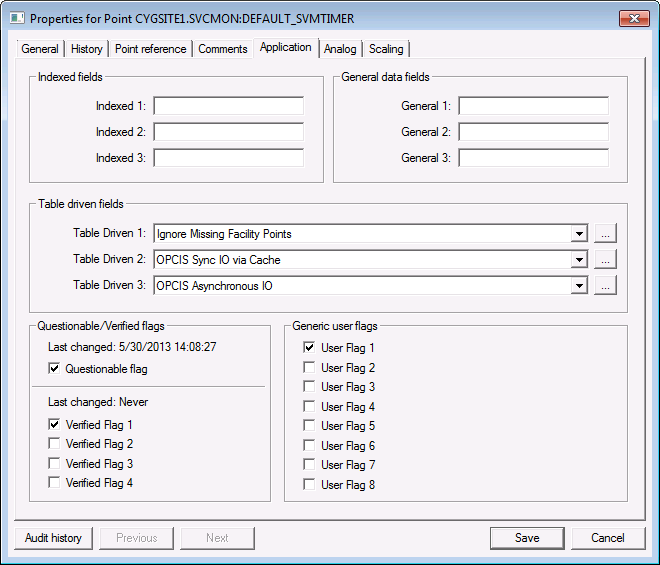
|
| Sample Application page for an Existing Point |
Application Properties
These are the properties shown on the Application page in the PNT Editor.
See Token Categories - Point: Application for the corresponding tokens for each property and Filter Attributes - Point: Application for the corresponding filter attributes for each property.
| Property | Description | Default Value |
|---|---|---|
| Indexed fields | ||
|
Indexed 1 |
Property that is included in a defined PNT index. Free-form text up to 15 characters. |
Blank |
|
Indexed 2 |
Blank |
|
|
Indexed 3 |
Blank |
|
| General data fields | ||
|
General 1 |
Free-form text up to 20 characters.
For more information about uses for these properties, see Filtering a Group Rollup and OPCIS Groups. |
Blank |
|
General 2 |
Blank |
|
|
General 3 |
Blank |
|
| Table driven fields | ||
|
Table Driven 1 |
Click … to select or configure an entry. Default options include: OPCIS Ignore Unreliable Value (OPCBADIGNR) and OPCIS Store Unreliable Value (OPCBADSTR). The entry is from the TRS.CMT1 table. The Table Driven 1 field is used to indicate what to do with the value of an OPC tag with OPC Quality flags that indicate an error. The default behavior is to mark as unreliable and save the value from the OPC server.
See OPCIS Groups for more information. |
Blank |
|
Table Driven 2 |
Click … to select or configure an entry. Default options include: OPCIS Sync IO via Cache (OPCSYNCCCH) and OPCIS Sync IO via Device (OPCSYNCDEV). The entry is from the TRS.CMT2 table. The Table Driven 2 field specifies whether the OPC server is to retrieve data from the cache or the device. This applies to all synchronous communication. This attribute provides the functionality of the OPC_SYNC_IO configuration file keyword at the group level.
See OPCIS Groups for more information. |
Blank |
|
Table Driven 3 |
Click … to select or configure an entry. Default options include: OPCIS Asynchronous IO (OPCIOASYNC) and OPCIS Synchronous IO (OPCIOSYNC). The entry is from the TRS.CMT3 table. The Table Driven 3 field defines the type of communication between the OPCIS and the OPC server. This attribute provides the functionality of the OPC_IO_TYPE configuration file keyword at the group level.
See OPCIS Groups for more information. |
Blank |
| Questionable/Verified Flags
See also the QUESTION security event for more information. |
||
|
Last changed |
Indicates when the questionable flag was last changed. |
Never |
|
Questionable flag |
Indicates data is questionable. |
0 (No) |
|
Last changed |
Indicates when the verified flag was last changed. |
Never |
|
Any Verified Flag |
An internal flag that indicates that at least one Verified Flag in the point record has been set. |
0 (No) |
|
Verified Flag 1 Verified Flag 2 Verified Flag 3 Verified Flag 4 |
Attribute property. Option is 1 (Yes) or 0 (No). |
0 (No) |
|
Any User Flag |
An internal flag that indicates that at least one User Flag in the point record has been set. |
0 (No) |
| Generic User Flags | ||
|
User Flag 1 User Flag 2 User Flag 3 User Flag 4 User Flag 5 User Flag 6 User Flag 7 User Flag 8 |
Attribute property. Option is 1 (Yes) or 0 (No). |
0 (No) |


